
Knowledge base / TaskManager / Using the app
My day
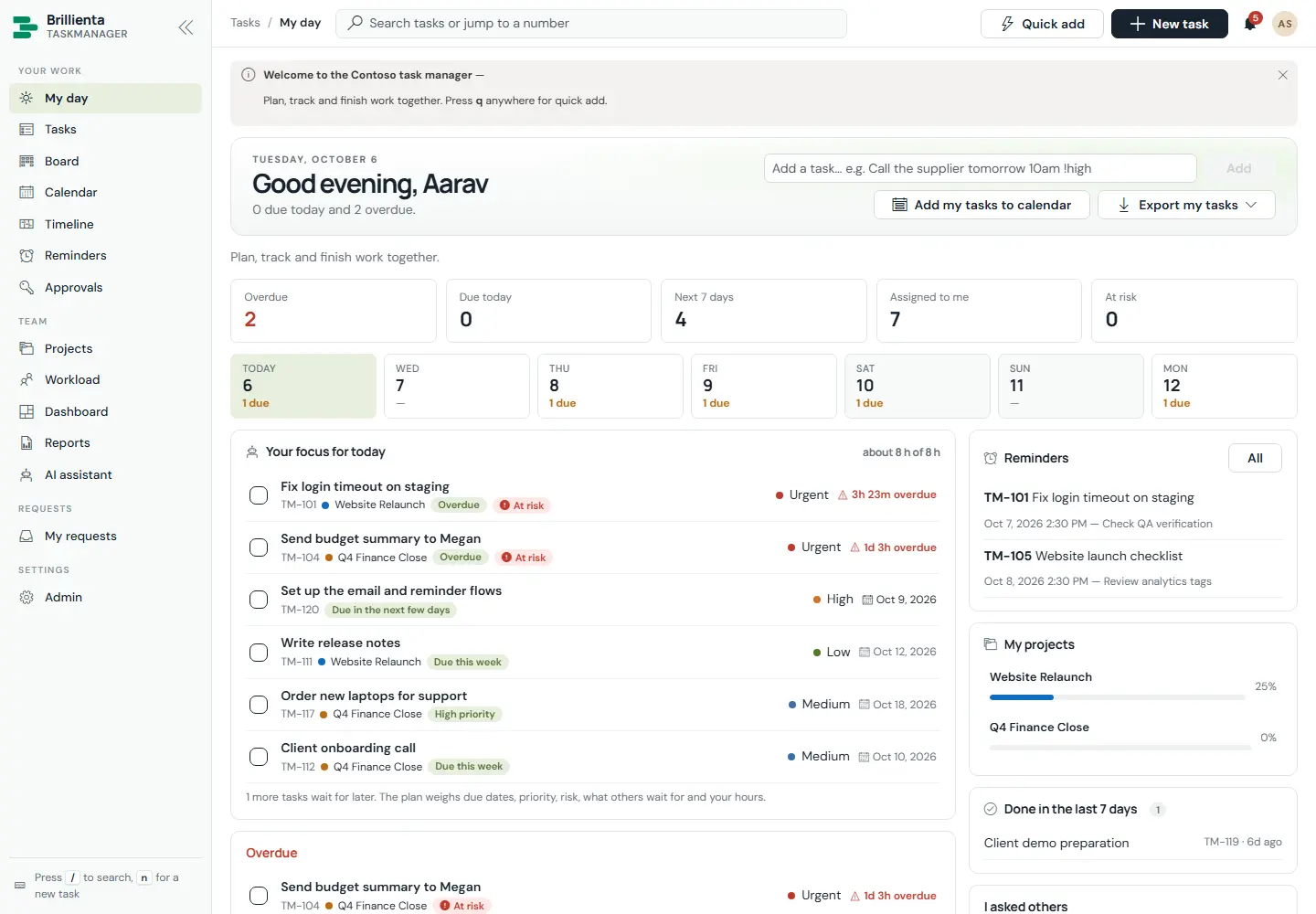
A member's home: what needs attention today. A greeting with today's numbers, KPI cards (Overdue, Due today, Next 7 days, Assigned to me, At risk — each jumps to that Tasks view), a 7-day strip with due counts, and the AI focus plan ("Your focus for today") ordered by due date, priority, risk, what others wait for and available hours, each line saying why it is next. Below: Overdue, Due today and Next 7 days with one-click complete, plus reminders, projects with progress, recently done work and items the member asked others for.
How to use it
- Type a task in the quick-add box and press Add — plain words work ("Call Alex tomorrow 3pm #sales !high").
- Click a KPI card to open that filtered view in Tasks.
- Tick a checkbox to complete; click any row, reminder or project to open it.
- Keyboard:
/search,qquick add,nnew task,gthen a letter to go to a page. - The bell (top right) holds assignments, status and due-date changes, mentions and approvals in real time.
- Search accepts words, tags, people — or a task number (1042) to jump straight to it.
Still need help?Our team answers product questions by email, and we can walk you through it on a call.
Open in the full guideContact support