
Knowledge base / Employee Directory / Using the app
People search
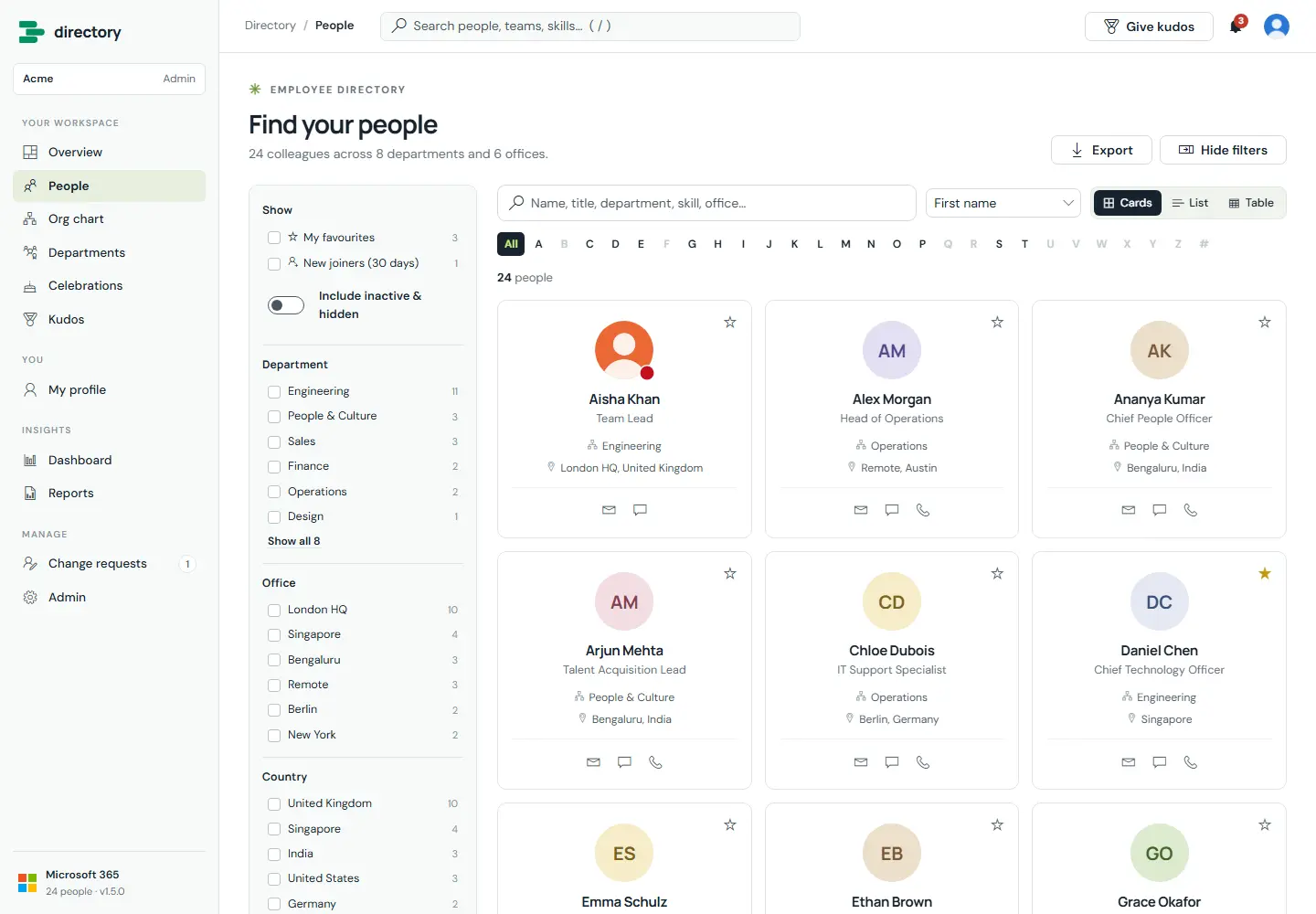
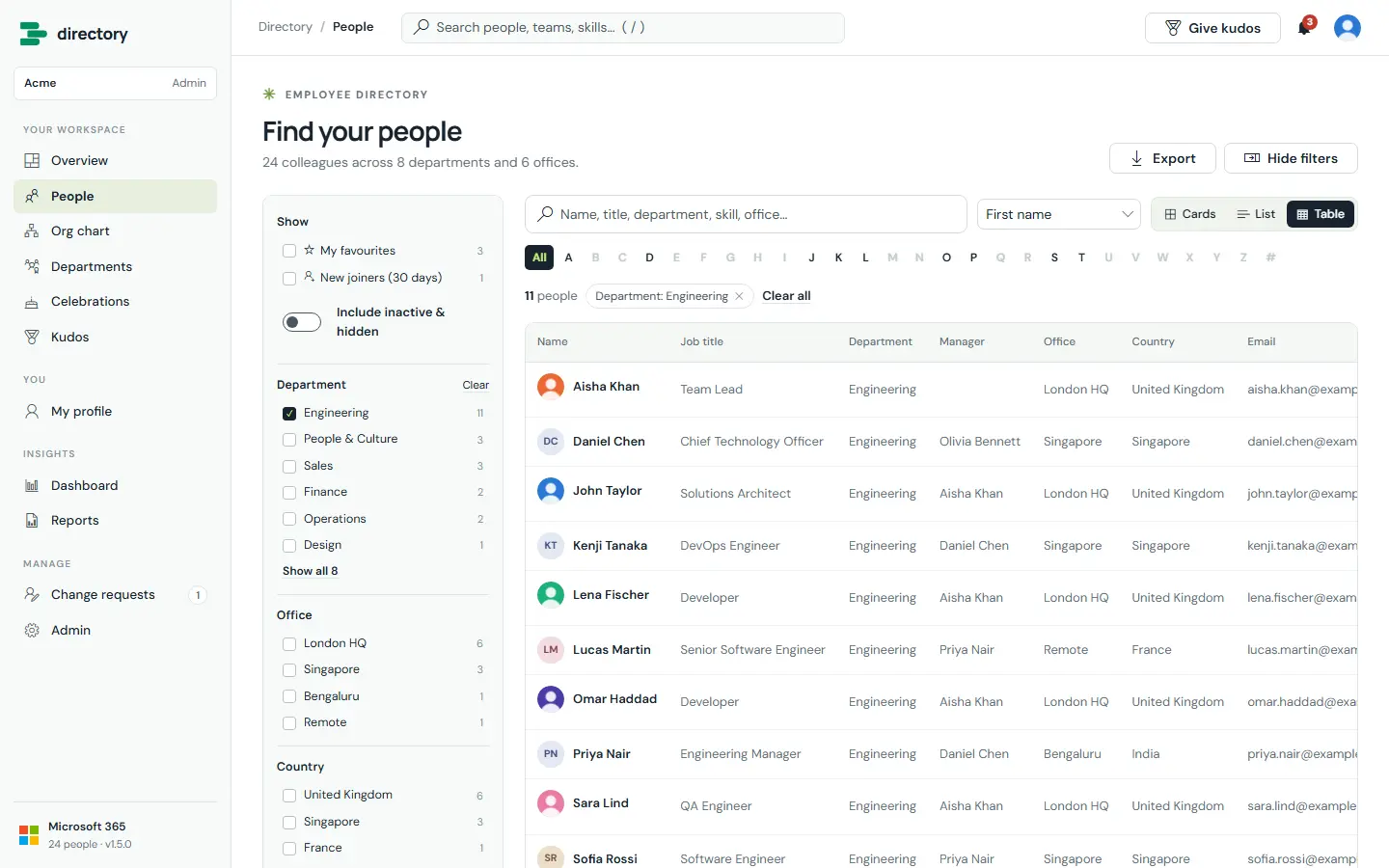
Find anyone by name, job title, department, office, skill or any other visible field. Narrow results with filters and the A–Z bar, and show them as cards, a compact list or a sortable table. Admins decide the default layout, which fields and quick actions each layout shows, and which filters are offered, under Admin › Cards & views.
How it works
- Every word typed must match. Name matches rank highest, and accents are ignored ("Jose" finds "José").
- Filter counts update as you combine filters. Choosing several values in one filter means "any of these".
- The A–Z bar offers only letters that have people, by first or last name.
- Default filters are department, office, country, job title, employee type and skills. Admins can change them.
- Quick actions on cards and list rows (email, Teams chat, call, QR code) are configurable. The QR code button opens the person's contact card or profile link as a QR code.
- Export downloads the current result as CSV, with only the fields the viewer may see. Values that could run as spreadsheet formulas are neutralised.
- HR and admins can include inactive and hidden people.
Still need help?Our team answers product questions by email, and we can walk you through it on a call.
Open in the full guideContact support