Knowledge base / Employee Directory / Using the app
Notifications & email
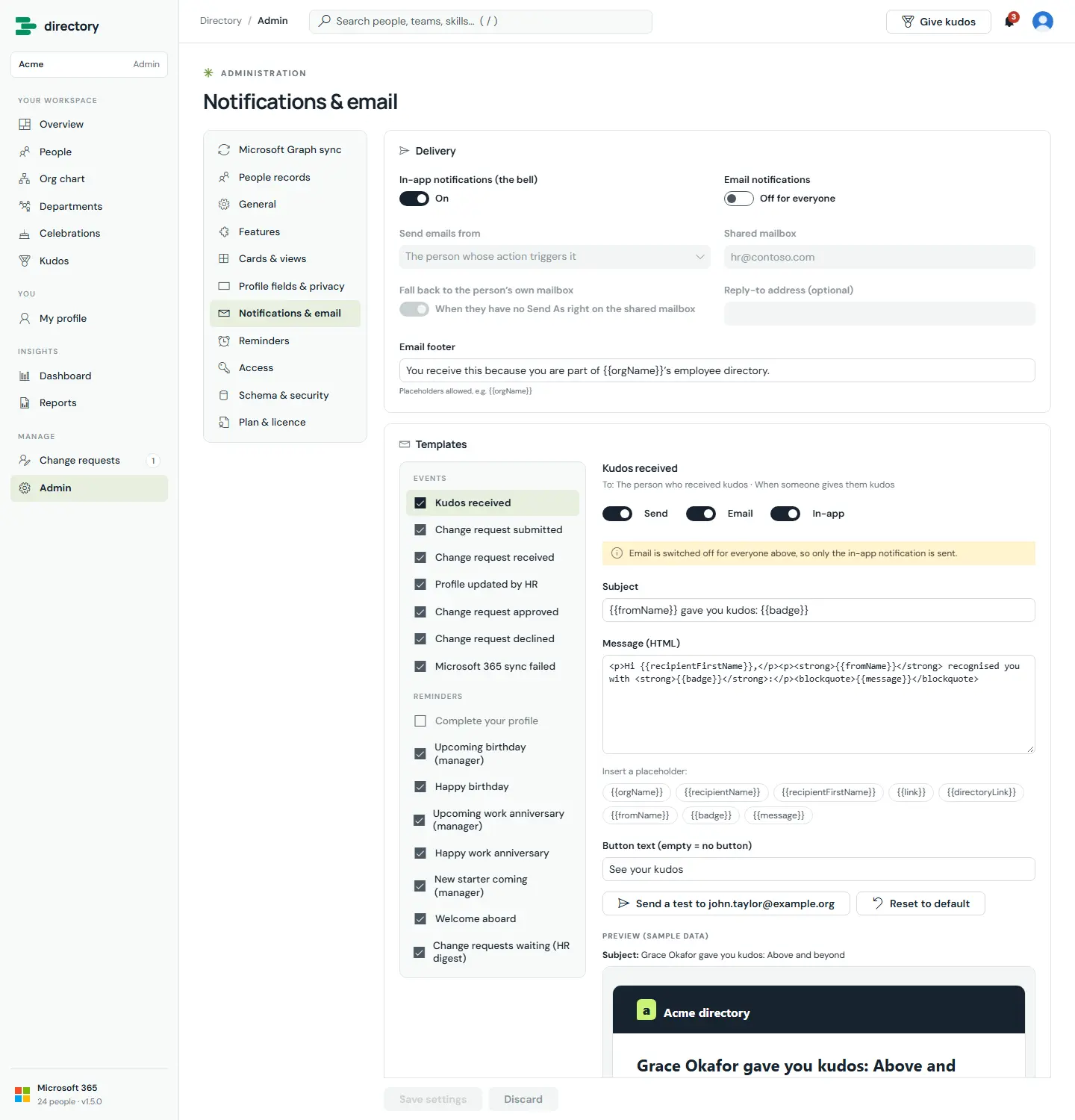
People are told what matters to them in the app's bell and, if enabled, by email. Admins decide which of the 15 notifications are sent, by which channel, and with what wording.
How it works
- Events: kudos received, change request submitted / received / approved / declined, profile updated by HR, and Microsoft 365 sync failed.
- Email is sent through Microsoft Graph from the mailbox of the person whose action triggers it. With Enterprise it can come from a shared mailbox, with an optional fallback and a reply-to address.
- Emails use a branded layout designed to display correctly in Outlook.
- Templates support placeholders such as
{{recipientFirstName}}or{{badge}}. Values are HTML-escaped, so a name or message cannot inject markup. - "Send a test" emails the admin, and "Reset to default" restores the original wording.
- The full list of templates is in the appendix.
Still need help?Our team answers product questions by email, and we can walk you through it on a call.
Open in the full guideContact support