
Knowledge base / Employee Directory / Administration
Cards & views
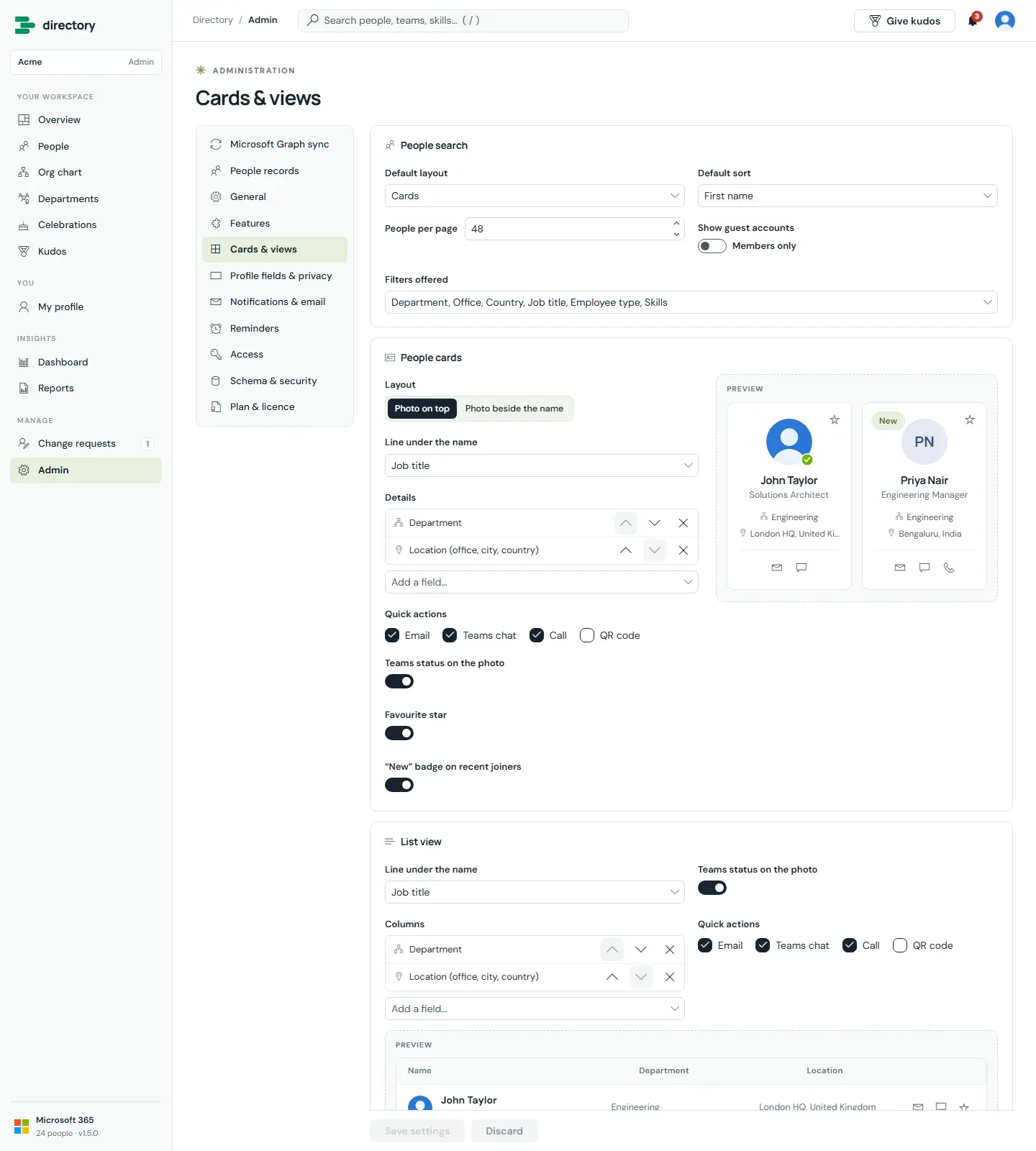
What people see in People search and the org chart: the default layout (cards, list or table), people per page, default sort, guest visibility and which filters are offered, what each person card, list row and table column shows, which quick actions appear, and how org chart cards look. Every section has a live preview built from real directory people. Nothing changes until Save settings.
How it works
- People cards: layout, subtitle line, up to 4 detail fields, quick actions (Email, Teams chat, Call, QR code), Teams status, favourite star, "New" badge.
- List view: subtitle line, columns, quick actions and Teams status. Table view: photo on/off and columns.
- Org chart cards: layout, size (compact / standard / large), photo (round / rounded / none), Teams status, accent colour (department / brand / none) on the top or left edge, team badge (direct or total reports), levels open at the start, and lines under the name.
- Fields respect visibility: a field marked "HR only" or hidden notes it in the list and never shows to people who may not see it.
- QR codes can additionally be switched off for everyone under Admin › Features.
Still need help?Our team answers product questions by email, and we can walk you through it on a call.
Open in the full guideContact support