
Knowledge base / Asset Management / Using the app
Requests & approvals
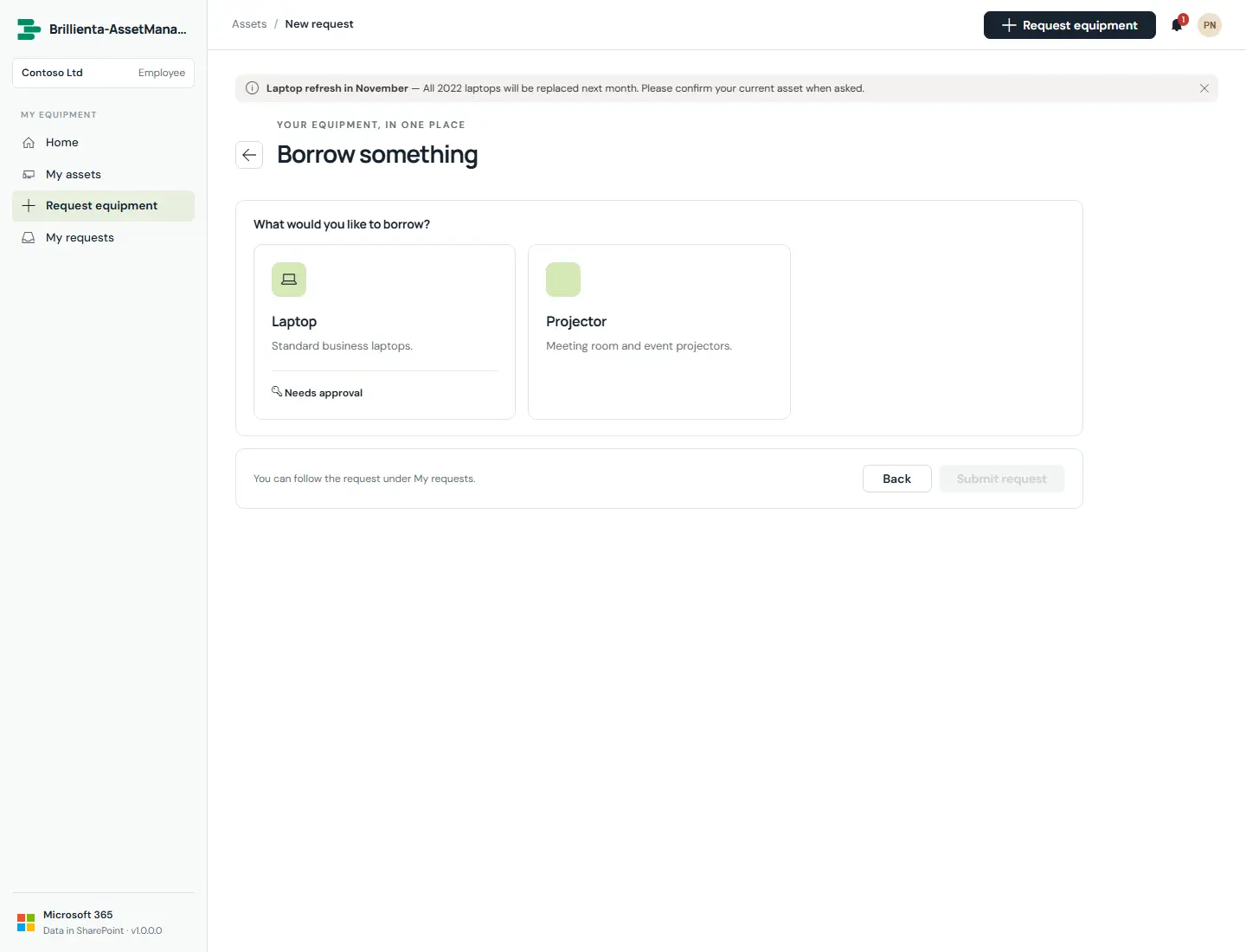
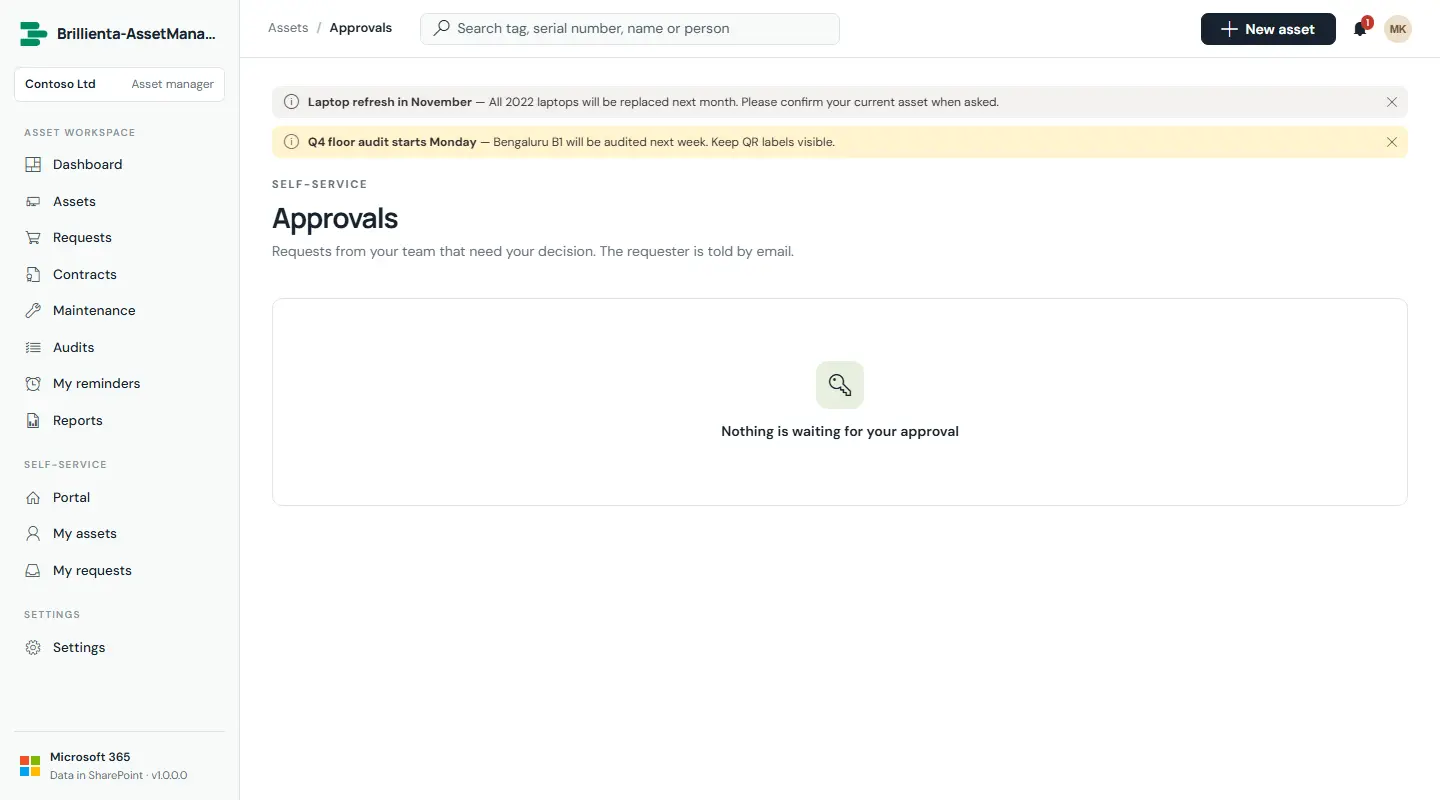
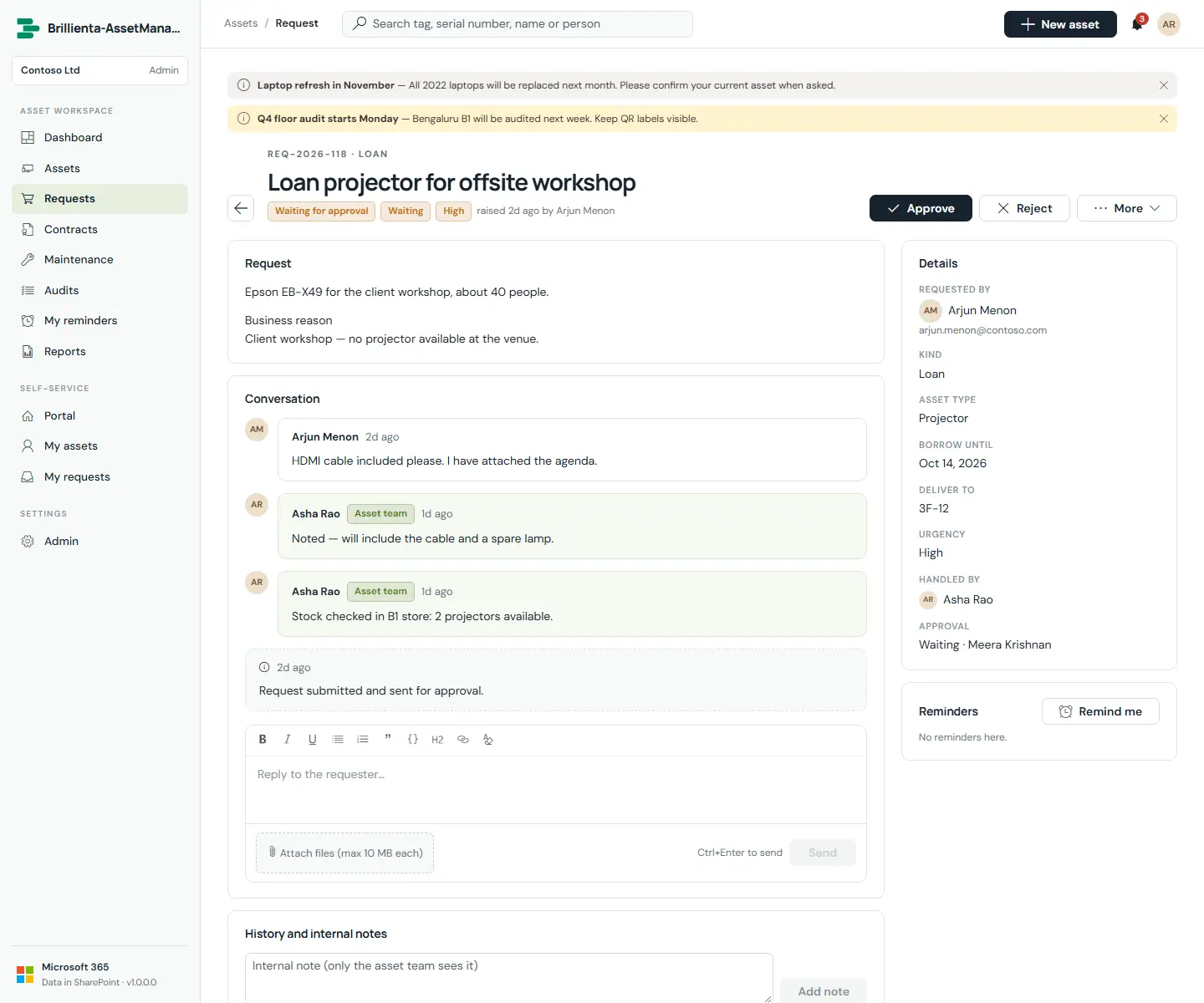
Five kinds — New, Loan, Replacement, Return, Issue — raised from the portal with business reason, dates and files. The asset team triages them in views (all open, handled by me, not picked up, waiting for approval, ready to fulfil), with conversation, files, internal notes and history on each request. Approval goes to the requester's manager or a named person; nobody approves their own request. Fulfilment hands out an asset, takes one back, or starts a repair in a single step and closes the request with a system comment.
How it works
- Approvals are verified against the request's SharePoint version history before fulfilment — a requester cannot fake an approval by editing the request.
- Approval reminders: after 1 day, every 2 days up to 3 times, then admins. Fulfilment nudges: 3 days after ready, every 3 days up to 3 times.
Still need help?Our team answers product questions by email, and we can walk you through it on a call.
Open in the full guideContact support