
Knowledge base / Asset Management / Administration
Administration
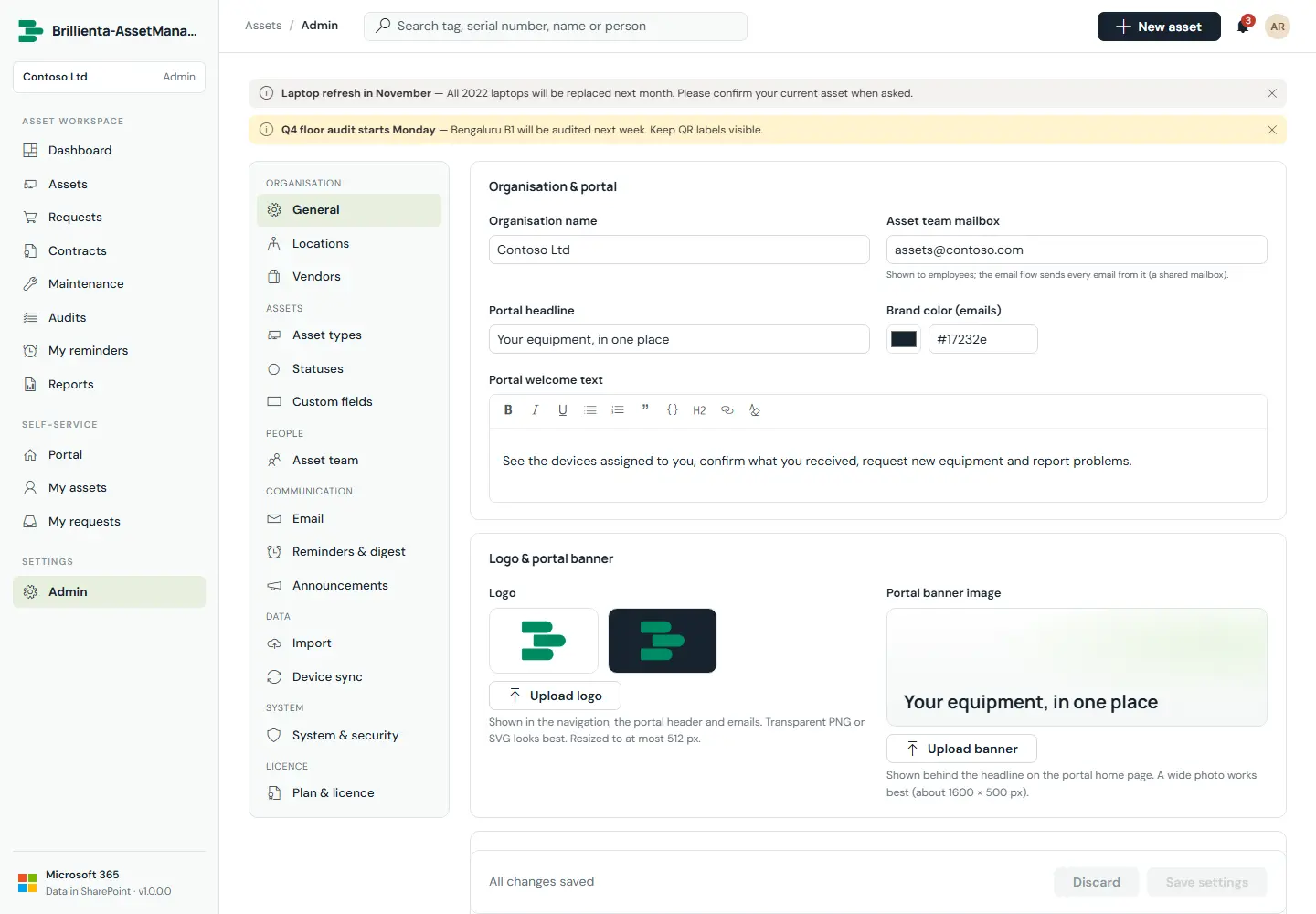
Everything is configured inside the app — no web part properties, no code. Admins see all sections; managers see Vendors, Announcements, Import and Device sync.
First run: the setup wizard
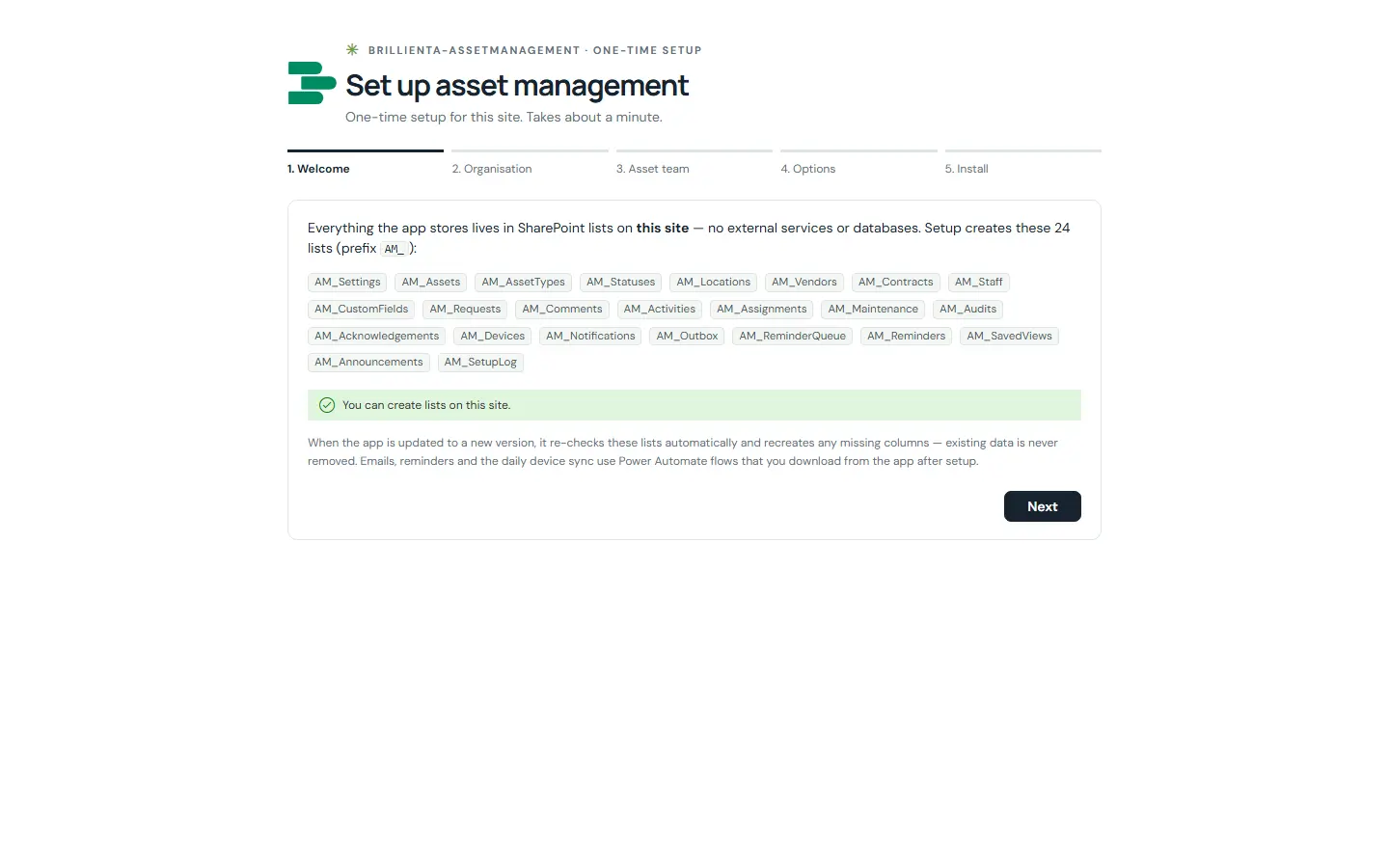
The first time a site owner opens the page, a wizard lists the 24 AM_ lists it will create and checks permissions, asks for organisation name, team mailbox, time zone, currency and numbering, adds admins, managers and auditors, and optionally adds starter content, turns on email and secures the lists. It is safe to run again — it resumes where it stopped. Anyone without Manage Lists sees “not set up yet” until then.
Settings sections
- Organisation — General (branding, numbering, currency, time zone, features, check-out defaults, maintenance mode), Locations, Vendors.
- Assets — Asset types, Statuses, Custom fields.
- People — Asset team (Admin / Manager / Auditor).
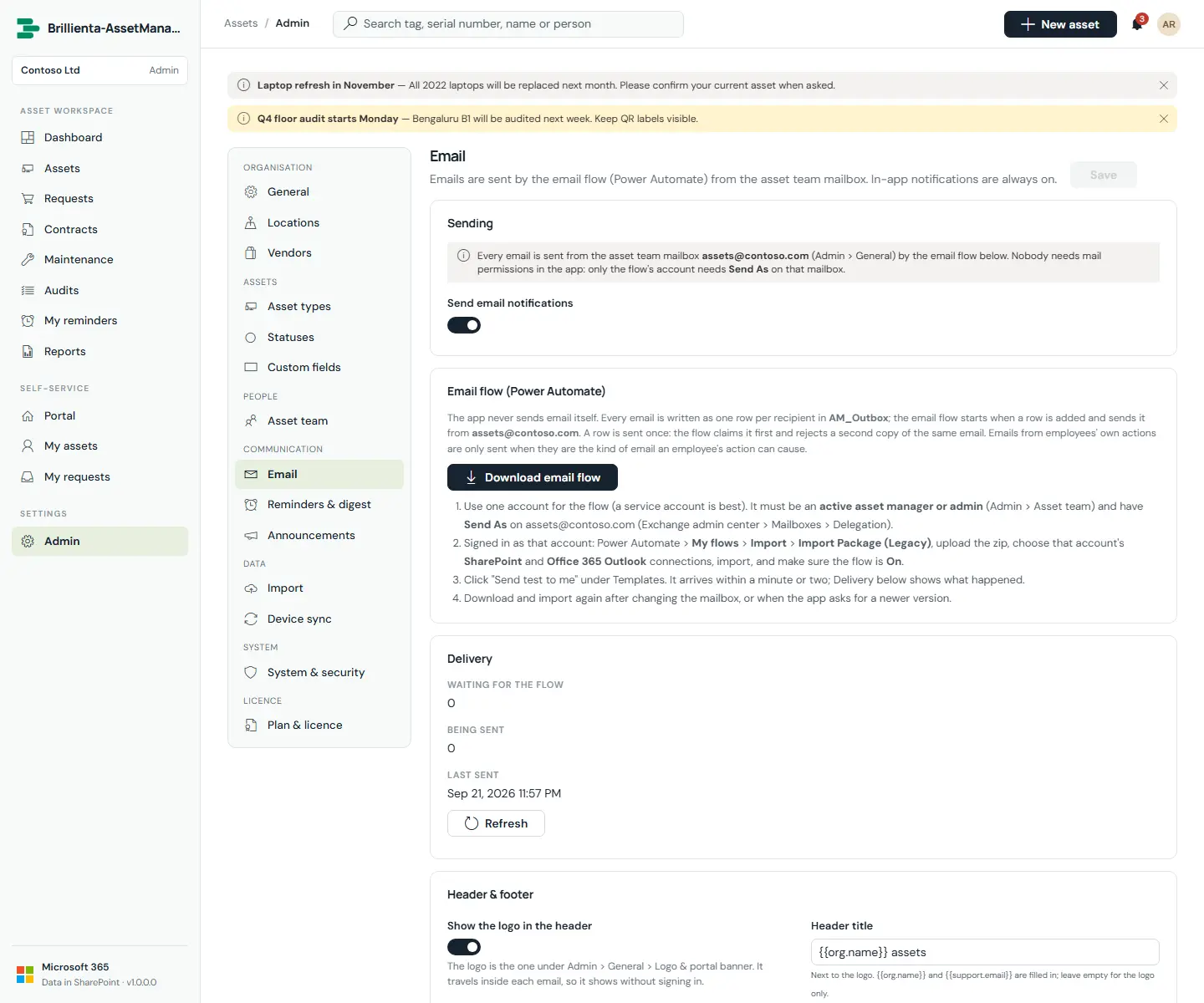
- Communication — Email (flow download, delivery overview, test send, 24 templates with preview), Reminders & digest, Announcements.
- Data — Import, Device sync (flow download; the client secret is pasted into the download and never stored).
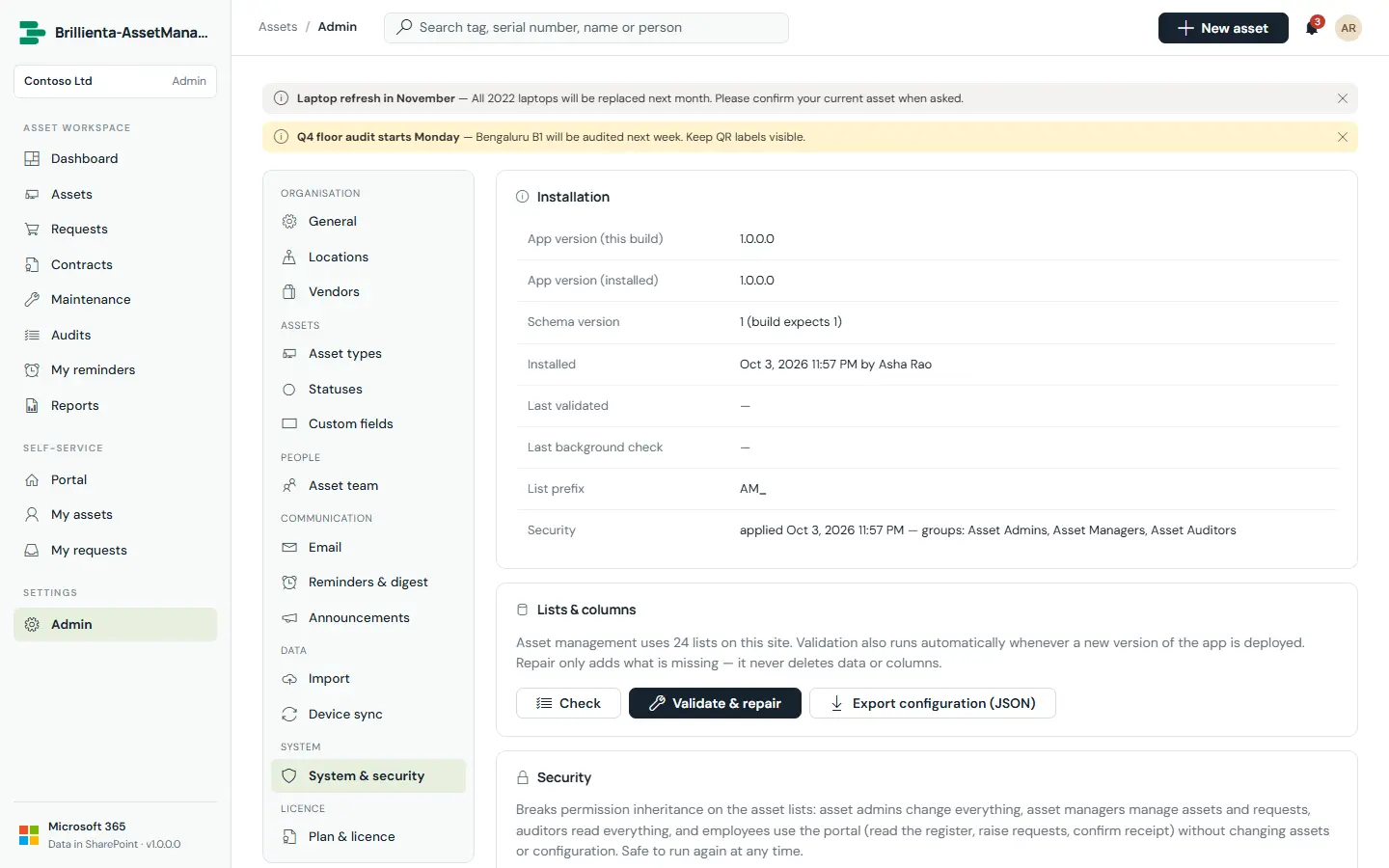
- System — System & security (on-demand check, Apply security, flow health), Plan & licence.
Power Automate flows
The app never sends email itself and has no server. Three flows, downloaded from the app as import packages, do the work that needs a mailbox or a schedule. Run them under one account that is an active asset manager or admin (a service account is best). Import via My flows › Import › Import Package (Legacy), choose the connections, import, and turn the flow On. The flow account needs Send As on the asset team mailbox.
| Flow | Download from | Trigger | Connections |
|---|---|---|---|
| Settings › Email | Item added to AM_Outbox | SharePoint, Office 365 Outlook | |
| Reminders | Settings › Reminders & digest | Every 5–60 minutes | SharePoint |
| Device sync | Settings › Device sync | Once a day | SharePoint, HTTP (Premium) |
DeviceManagementManagedDevices.Read.All and Device.Read.All › Grant admin consent › new client secret. Enter the application id in Settings › Device sync and paste the secret into the download box.